AI Store Builder
Automatically populate your store with products, categories, and details using AI-powered analysis.
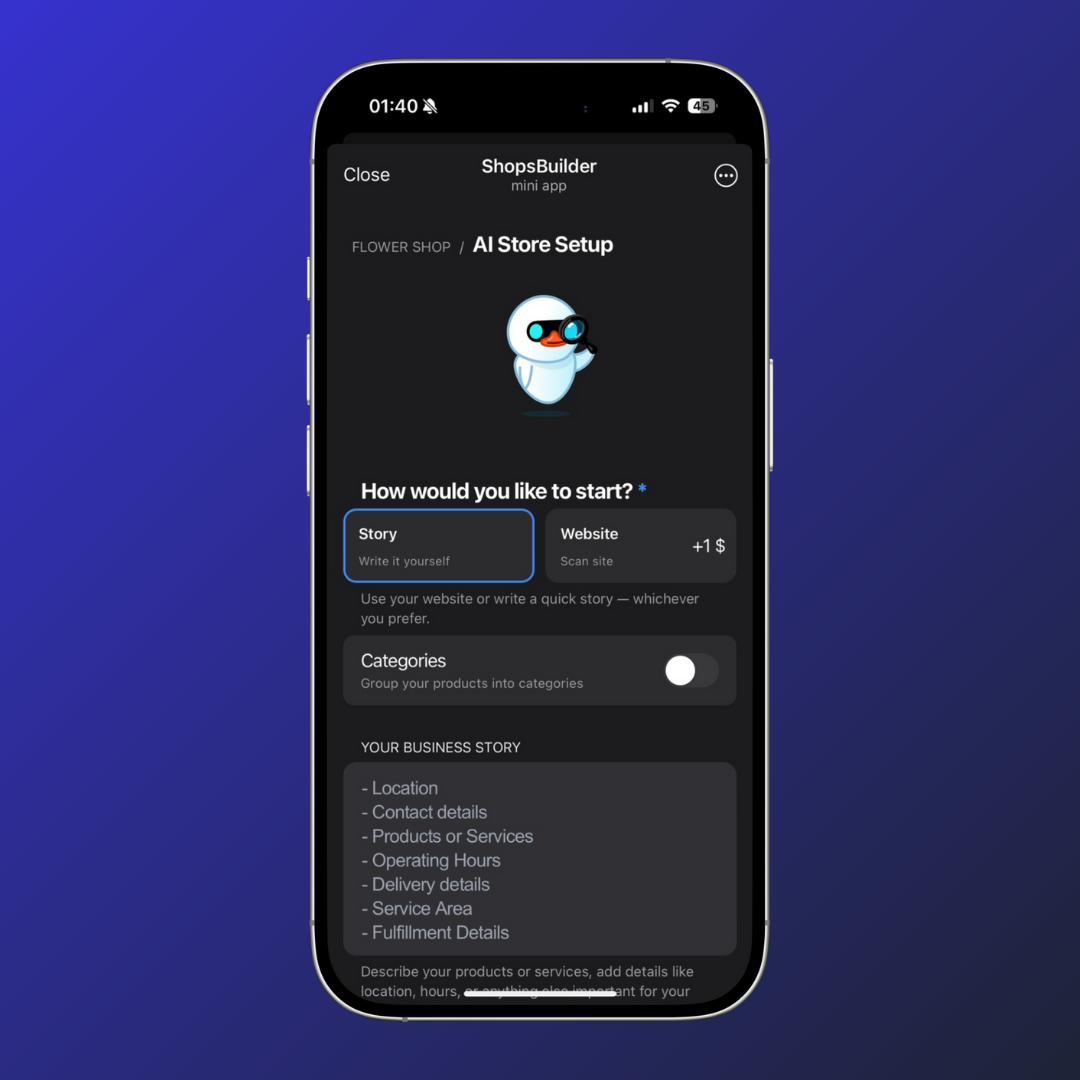
What is AI Store Builder?
AI Store Builder automatically creates your store’s content based on a text description or website scan.
What Gets Populated
When you use AI Store Builder, it automatically creates:
- Products and services — Name, description, price, discounted price, photos
- Product categories — Organized automatically (if Categories feature enabled)
- Shipping and delivery terms — Complete delivery setup
- Business hours — When your business is open
- Store locations — Physical address information
- Business description — Professional store overview
- Contact information — Phone, email, and other details
- Useful links — Social media and website connections
Benefits
- ✅ Save time — No manual entry required
- ✅ Professional quality — Well-structured content
- ✅ Fast setup — Create your store in minutes
- ✅ Flexible — From text description or website scan
- ✅ Editable — Review and modify before publishing
How to Use AI Store Builder
Prerequisites
Before using AI Store Builder, you need:
- A connected bot — Create your store with a bot first
- Bot access — Ensure you can access store settings
⚠️ Don’t have a bot yet? See Bot Setup to create one.
Step-by-Step Guide
Step 1: Create Your Store with Bot
Follow the Store with Bot instructions to set up your store.
Step 2: Navigate to AI Store Builder
- Open @ShopsBuilderBot
- Go to your store settings
- Find and click AI Store Builder section
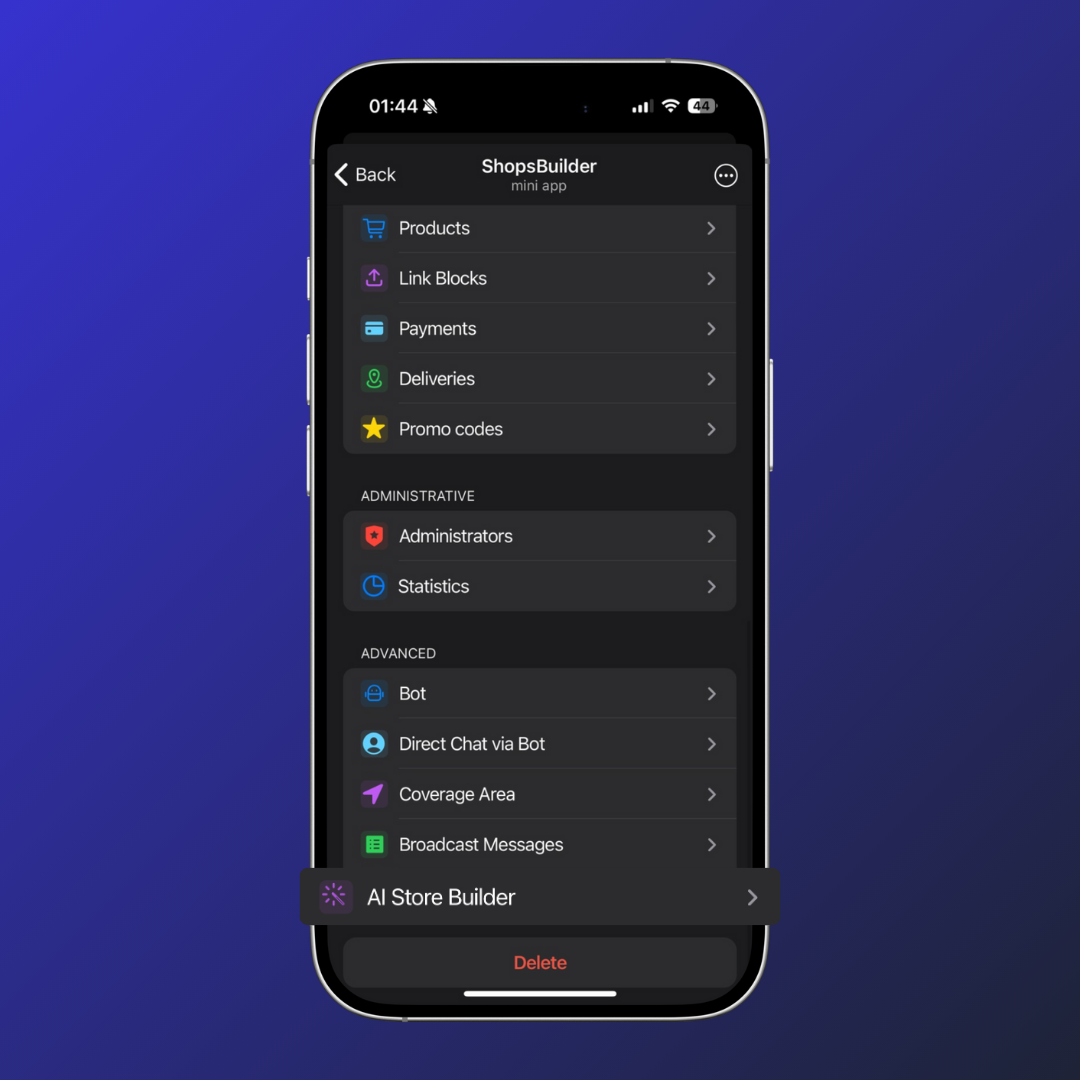
Step 3: Choose Input Method
Select one of two options:
Option A: From Text
- Click From Text
- Describe your store in detail
- Include as much information as possible for best results
What to include in your description:
- Store name and purpose
- Product types and categories
- Price ranges and currency
- Target audience
- Delivery options available
- Business hours and contact details
- Any special features or unique selling points
Example description:
I run a digital products store called TechHub. We sell software licenses,
SaaS subscriptions, and educational courses. Categories include Productivity
Tools, Development Tools, and Design Resources. Prices range from $10-$200.
We offer instant digital delivery via email, accept credit cards and TON payments,
and are open 24/7. Our store specializes in premium quality tools for
freelancers and small businesses. Contact: [email protected]
Option B: From Website
- Click From Website
- Enter your website URL
- Click to scan — analysis happens automatically
Requirements for website scan:
- Website must be publicly accessible
- Contains product pages with details
- Clear pricing and category structure
- Current and accurate information
Step 4: Start Store Creation
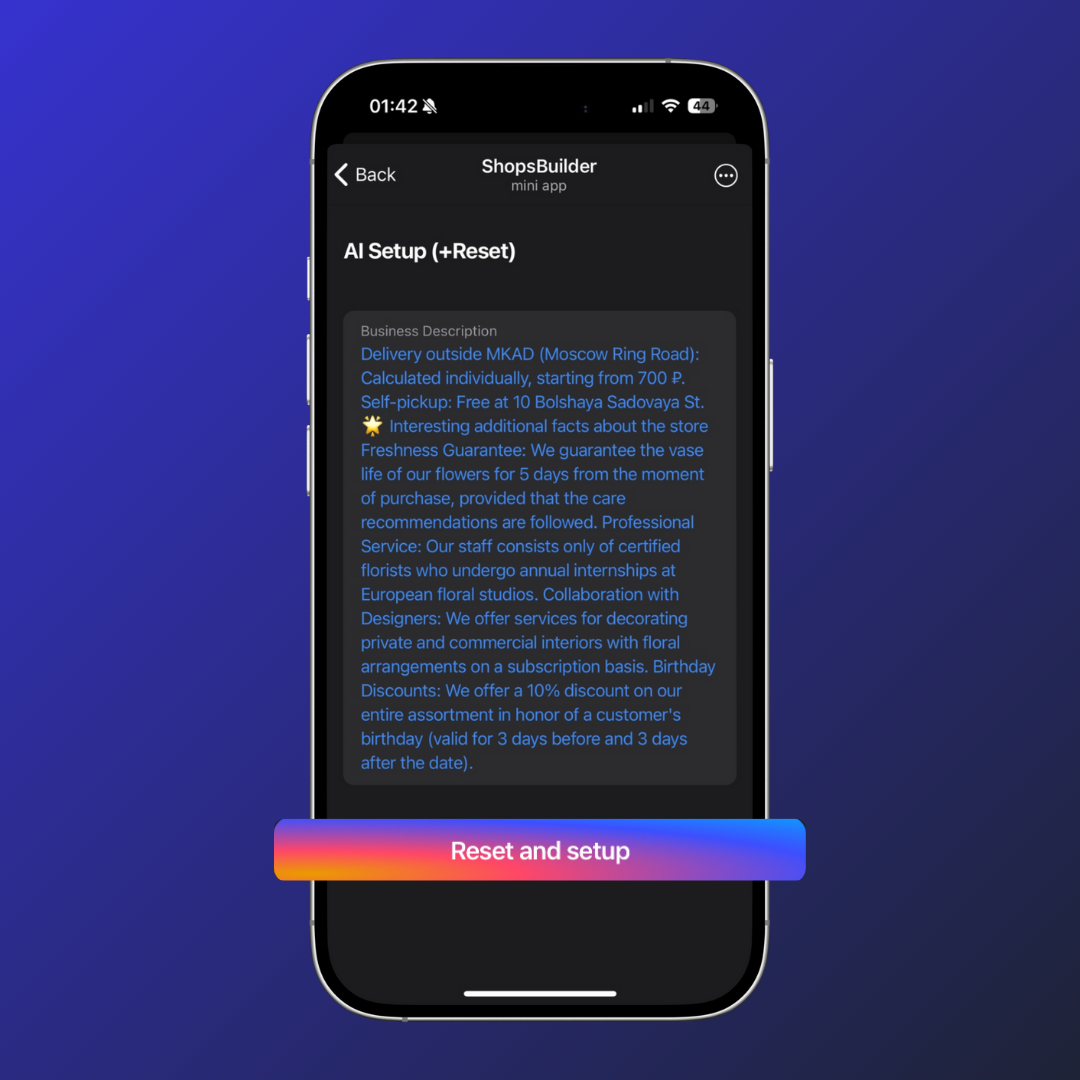
- Click the button to begin analysis
- Wait for processing — typically completes within 5 minutes
- Review the generated draft
Step 5: Review and Refine
You’ll receive a message with your store draft. Options:
Approve and Auto-Populate:
- If you’re satisfied with the draft
- Click to run auto-population
- Store data is imported automatically
Edit and Retry:
- If you want changes
- Edit your description or prompt
- Run the analysis again
- Generate a new draft
Tips for better results:
- Be specific in your description
- Include pricing details and currency
- List all major product categories
- Mention delivery and business hours
- Provide contact information
Step 6: Finalize and Publish
- Wait for confirmation message
- Data successfully imported
- Your store is ready!
Step 7: Set Up Payments
After store creation, configure payment methods:
- See Payments for setup instructions
- Add Stars, TON, or card payment options
- Test the checkout process
Editing Your Store
Even after AI Store Builder creates your store, you can:
- Modify products — Add, edit, or remove items in CRM
- Adjust categories — Reorganize your catalog structure
- Update details — Change prices, descriptions, or images
- Run again — Re-run AI Store Builder anytime for updates
CRM Management
Access the full CRM to make manual changes:
- See Catalog & CRM for detailed instructions
- Work from a computer for best experience
- Changes sync to your store within ~1 minute
Tips and Best Practices
For Text Descriptions
✅ Be detailed and specific
- List all product categories you want
- Include price ranges and currency
- Describe your target audience
- Mention unique features
✅ Use clear language
- Avoid technical jargon
- Be direct and concise
- Structure information logically
- Use complete sentences
✅ Include complete information
- Business hours and location
- Delivery options
- Payment methods
- Contact details
❌ Avoid:
- Vague or generic descriptions
- Incomplete sentences
- Missing key information
- Incorrect formatting
For Website Scans
✅ Best practices:
- Ensure website is up-to-date
- Clear product categorization
- Consistent pricing displayed
- Professional appearance
✅ Before scanning:
- Check all product pages are accessible
- Verify prices are correct
- Confirm categories are organized
- Test website loads quickly
❌ Common issues:
- Broken or outdated links
- Inconsistent product information
- Missing pricing data
- Poor website structure
Troubleshooting
”Analysis Failed”
- Check your description — Ensure it’s detailed enough
- Verify website — Confirm URL is correct and accessible
- Try again — Sometimes a retry resolves issues
- Contact support — If problems persist
”Products Missing”
- Review the draft — Check what was generated
- Edit description — Add more details about missing items
- Re-run analysis — Generate a new draft
- Add manually — Use CRM to add missing products
”Incorrect Categories”
- Review draft — Check category structure
- Edit prompt — Be more specific about categorization
- Re-run analysis — Generate improved draft
- Modify in CRM — Adjust categories manually
”Poor Quality Images”
- AI may select generic images
- Replace in CRM — Upload your own product photos
- Use best practices — High-quality images sell better
- Review images — Check all products have good photos
Advanced Usage
Combining AI and Manual
For best results:
- Start with AI — Generate initial store structure
- Review carefully — Check all generated content
- Edit manually — Make adjustments in CRM
- Test thoroughly — Ensure everything works correctly
- Iterate — Run AI again for new products or updates
Multiple Runs
You can run AI Store Builder multiple times:
- Add new products or categories
- Update existing information
- Refresh store content
- Improve descriptions and details
Each run creates a new draft — choose what to import.
Next Steps
- Getting Started — Learn how to create a store
- Catalog & CRM — Manage your products
- Payments — Configure payment methods
- FAQ — Common questions and answers
Need Help?
Having trouble with AI Store Builder? Contact our support team: