Frequently Asked Questions
Find answers to common questions about ShopsBuilder. Can’t find what you’re looking for? Contact Support .
Getting Started
How do I create a shop?
Go to @ShopsBuilderBot and follow the instructions. You can create a store with a bot or without a bot.
- Create a store with a bot — Best for payments, notifications, and search
- Create a store without a bot — Simple cash payments
Can I connect a bot later?
Yes! You can connect a bot at any time after creating your store.
How do I access the CRM?
After creating your store, you’ll receive an email with a registration link. Click the link to access the CRM where you add products. You can also find the CRM link in @ShopsBuilderBot under the Store section.
Didn’t receive the link?
- First shop — check your Spam folder
- Already have a shop — new shops appear automatically in your account
Bot & Tokens
How do I create a bot?
Use @BotFather in Telegram:
- Start BotFather and send
/newbot - Choose a name and username (must end with
botor_bot) - BotFather provides a TOKEN — copy this token
What is a token?
A token is a secret key that identifies your bot. Think of it as your bot’s unique ID.
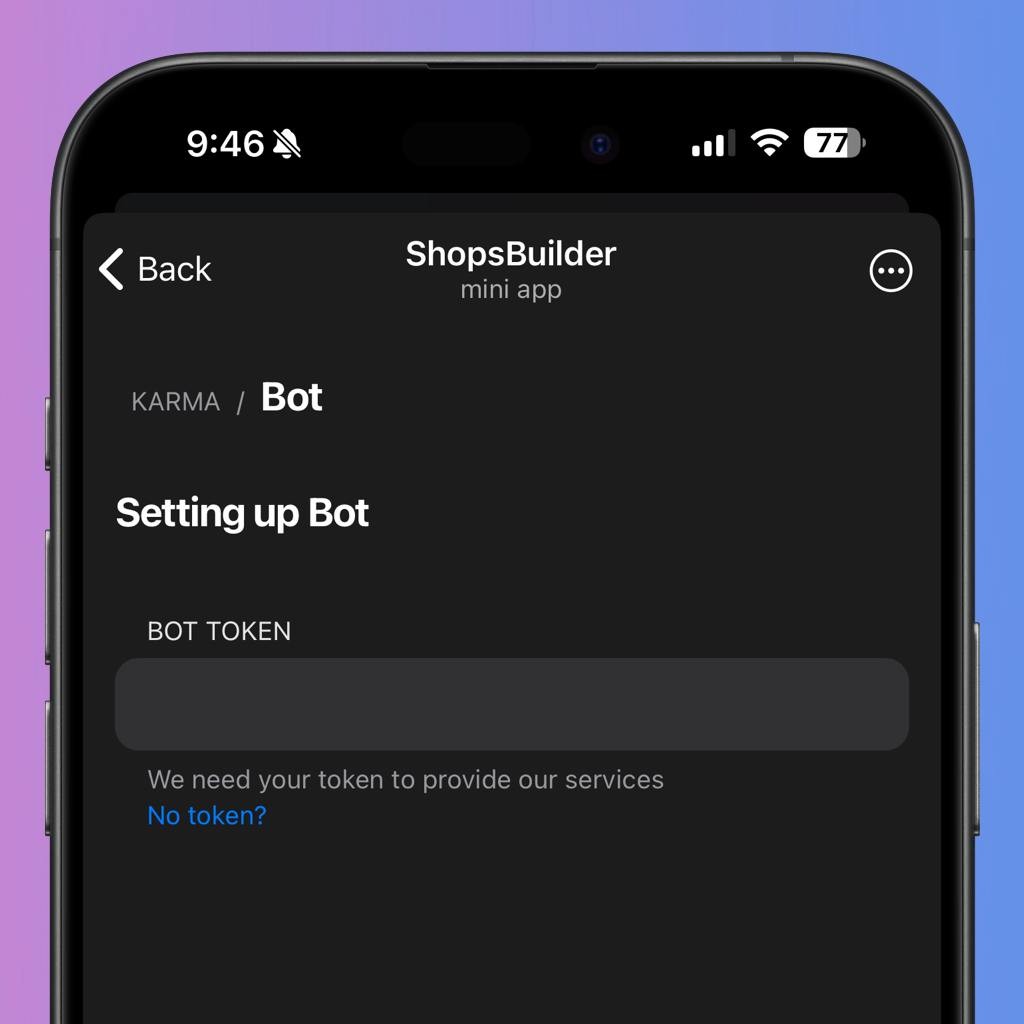
Example: 987654321:AABbCCDd_eE11fFgGhHiIJJKKllMMNNOOPp
Why do I need a bot?
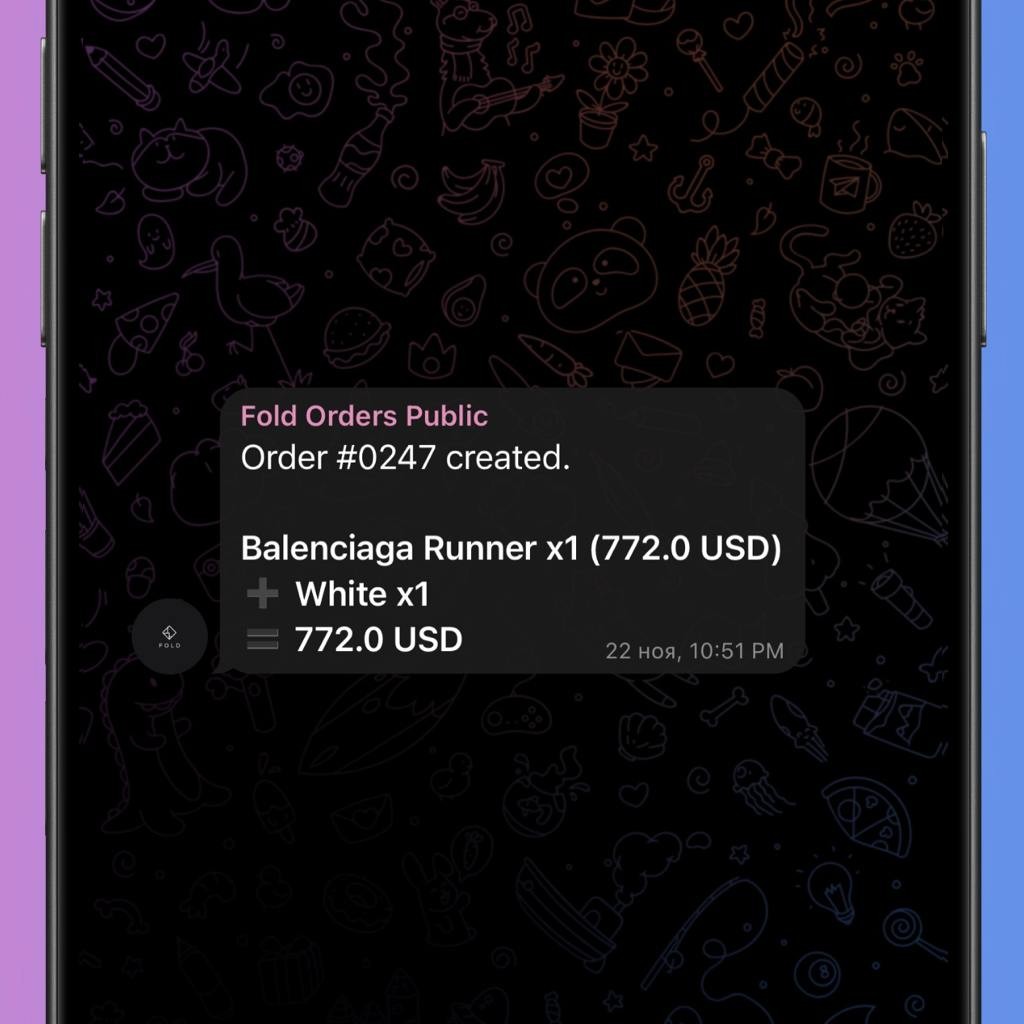
A bot unlocks these features:
- Accept payments in Stars, TON, and bank cards
- Send order status updates
- Use inline search
- Manage orders through group chats
- Send newsletters to customers
- Customize with avatars and welcome messages
Can I use my shop without a bot?
Yes, but functionality is limited:
- With bot: Stars, TON, card payments, notifications, search
- Without bot: Cash payments only
See the comparison table in Features.
Products & CRM
How do I add products to my shop?
- Access the CRM (via email link or in @ShopsBuilderBot )
- The CRM is a table where you add products and their details
- Fill in product name, price, images, and quantity
What images work best?
- Product cards: Square
.webpimages - Categories & covers: Rectangular
.webpimages - Animations: GIF and Lottie format supported
How many images can I add?
Up to 10 images per product.
Why aren’t my products showing?
Wait about one minute after adding. Common issues:
- No product name specified
- No images added
- No quantity or price set
- Category set as its own parent (products won’t display)
Can I move products around in the table?
Currently, drag-and-drop reordering is not available. Move products one row at a time.
Payments
What payment methods are available?
- Cash/Card transfers — Always available
- Telegram Stars — Available with bot
- TON — Available with bot
- Bank cards — Available with Premium
How do I connect card payments?
Contact a local payment provider to set up card processing. Most banks require visiting a branch and opening an account.
Can I accept crypto payments?
Yes! TON blockchain payments are supported. See the TON payment guide for details.
How do I accept Stars?
Configure payments in your store settings. Stars are processed through Telegram’s payment system.
Orders & Delivery
How do I set up delivery?
In @ShopsBuilderBot , go to Delivery section and add your delivery methods.
What delivery options can I specify?
Any method you use — for example: “DHL”, “Glovo Courier”, “Postal Service”, “Self-pickup”, or “I’ll bring it myself.”
What information do customers need to provide?
- Full address
- Contact details
- Desired delivery time
- Special instructions
- Pickup point address (if applicable)
Features
What is inline search?
Inline search lets customers find and share your products directly in any Telegram chat. Type @your_bot search query to find products.
What is Customer Support?
Customer Support creates dedicated threads for each customer who needs help. Messages requiring manual attention appear separately from orders. You can reply in the thread, and the bot delivers your message.
See Customer Support guide for details.
What Premium features are available?
- Instant Content Delivery — Auto-send digital goods
- Mass Mailing — Contact all customers
- Related Products — Suggest similar items
- Search Enhancement — Better discovery
- Inventory Tracking — Stock monitoring
- Booking System — Reserve items
- Weekly Reports — Sales analytics
- Custom Branding — Remove watermark
See Premium Features for full details.
Troubleshooting
”Cannot access shop” (не получается перейти в магазин)
Common issue where customers can’t open the store. Try these solutions:
For customers:
- Clear browser cache — Old data can cause display issues
- Try a different Telegram app — Desktop, mobile, or web version
- Check the link — Ensure you’re using the correct store URL
- Verify internet connection — Telegram requires stable connectivity
- Update Telegram — Old app versions may have issues
For merchants:
- Check bot is running — Start a conversation with your bot
- Verify store is deployed — Check in ShopsBuilderBot under “Store”
- Test the link yourself — Confirm it works on different devices
- Check bot permissions — Ensure bot has admin rights in groups
- Contact support — If issues persist, reach out to ShopDevTeam
Orders aren’t arriving
- Check delivery address — Verify with the customer
- Confirm payment — Payment must be completed first
- Check tracking info — If available, track the package
- Contact delivery provider — Courier or postal service
- Verify customer contact — Make sure you can reach them
Payment failed
- Check payment method — Ensure it’s configured correctly
- Verify customer funds — Sufficient balance or limit not reached
- Try alternative method — Different payment option
- Check provider status — Payment provider may have issues
- Review error messages — Specific errors indicate the problem
CRM access issues
“I didn’t receive the registration link”
- First shop? Check your Spam folder
- Already have a shop? Link is only sent for the first shop. New shops appear in your existing account automatically
- Still can’t access? Contact support at @ShopDevTeam
“Can’t login to CRM”
- Check your email for the registration link
- Use the link in ShopsBuilderBot under “Store” section
- Ensure you’re using the correct email address
- Try clearing browser cookies and cache
- Use a different browser or device
Products not showing in store
After adding products, wait about one minute for changes to take effect. If they still don’t appear:
- Check product details: Name, price, quantity, images must be set
- Verify category: Not set as its own parent category
- Check availability: Quantity must be greater than 0
- Review images: At least one image is required
- Refresh the store: Clear cache or reopen
Bot not responding
- Verify bot is running — Start a conversation with the bot
- Check token — Ensure correct token is in store settings
- Admin permissions — Bot must be admin in the orders group
- Test commands — Try
/startor/helpcommands - Restart the bot — In BotFather, use
/mybots→ your bot → Restart Bot
Inline search not working
- Confirm bot is connected — Inline search requires a connected bot
- Enable inline mode — In BotFather, enable inline mode for your bot
- Check products exist — Need at least one product in catalog
- Test with keywords — Use at least 3 letters for search
- Wait for sync — New products take up to 1 minute to appear
Delivery issues
Customer says “Didn’t receive order”
- Check delivery status with carrier
- Verify shipping address is correct
- Confirm if signature was required
- Check if customer was contacted
- Work with carrier on investigation
“Wrong delivery method selected”
- Review delivery configuration
- Ensure options are clearly described
- Provide delivery method instructions
- Contact customer to clarify
Mini App not loading
- Verify bot connection — Must use the same bot connected to store
- Check URL — Ensure correct Mini App link is used
- Clear cache — Browser or Telegram app cache
- Test on different device — Desktop, mobile, web
- Verify Mini App creation — Check in BotFather
/myapps
Affiliate Program FAQ
How do I join the affiliate program?
Contact @ShopDevTeam to apply for the affiliate program. After approval, you’ll receive a unique referral link to share with potential merchants.
What commission do affiliates earn?
Affiliates earn a percentage of revenue from referred merchants. The exact rate depends on your partnership tier and is negotiated during the application process.
When and how are affiliate payouts processed?
Payouts are processed monthly. You can receive payments via TON, USDT, or bank transfer. Minimum payout threshold and specific terms are provided upon joining the program.
Still Need Help?
Can’t find your answer? Reach out to our support team: