Bot Setup
A bot enables payments, notifications, inline search, and advanced features for your ShopsBuilder store.
Creating Your Bot
Step 1: Use BotFather
- Open @BotFather in Telegram
- Click Start and send
/newbot - Choose a bot name and username (must end with
botor_bot) - BotFather provides a TOKEN — copy this token
Example token: 987654321:AABbCCDd_eE11fFgGhHiIJJKKllMMNNOOPp
Step 2: Create a Group for Orders
Create a Telegram group where order notifications will be sent:
- Create a new group in Telegram
- Name it something clear (e.g., “My Shop Orders”)
- You’ll add the bot to this group during store setup
Step 3: Connect Bot to Your Store
- Open @ShopsBuilderBot
- Click Start → Open → Add → Create Store
- Choose Connect Personal Bot
- Paste your BOT TOKEN
- Add the bot to your order management group
- Click Refresh
Bot Features
Payments
Your bot can process these payment methods:
- Telegram Stars — Native Telegram currency
- TON blockchain — Cryptocurrency payments
- Bank cards — Through supported payment providers (Premium)
- Cash/card transfers — Direct transfers to personal cards
Payment Notifications:
When customers pay via TON or Telegram Stars, you’ll receive automatic notifications in your order group. For card or cash transfers, arrange with the customer to notify you after payment.
Order Notifications
When customers place orders, your bot automatically sends:
- Order confirmation — Details of items purchased
- Payment received — Confirmation that payment went through
- Order status updates — Shipping, delivery, and completion
All notifications go to your order management group for easy tracking.
Inline Search
Customers can search for products through your bot without opening your store:
@your_bot search product_nameThe bot returns product links that can be shared anywhere in Telegram:
- Private messages
- Closed groups
- Open channels
- Any Telegram chat
To enable inline search:
- Go to @BotFather
- Select your bot
- Go to Bot Settings → Inline Mode
- Turn inline mode ON
- Optional: Set a custom placeholder (e.g., “I’m looking for…”)
How customers use it:
- Type your bot’s username in any chat
- Enter at least 3 letters of a product name
- Select a product from the dropdown
- Send it to share the product card
Group Order Management
Orders are collected in your group chat with:
- Product details — Items, prices, quantities
- Customer information — Contact details and delivery info
- Links to customer threads — When customers have questions
- Payment confirmation — Automatic for TON/Stars
With Customer Support enabled:
- Each customer gets their own thread for questions
- Orders stay in the General section
- Quick access to customer conversation history
Newsletters
Send promotional messages to your customers:
- Broadcast messages to all customers or specific segments
- Use your store’s avatar for branding
- Include welcome messages for new visitors
- Add inline buttons with links to products, promotions, or your shop
Newsletter features:
- Subject lines for clear messaging
- Button options: Inline, App, or Shop button
- Scheduling for optimal send times
- Test messages before sending
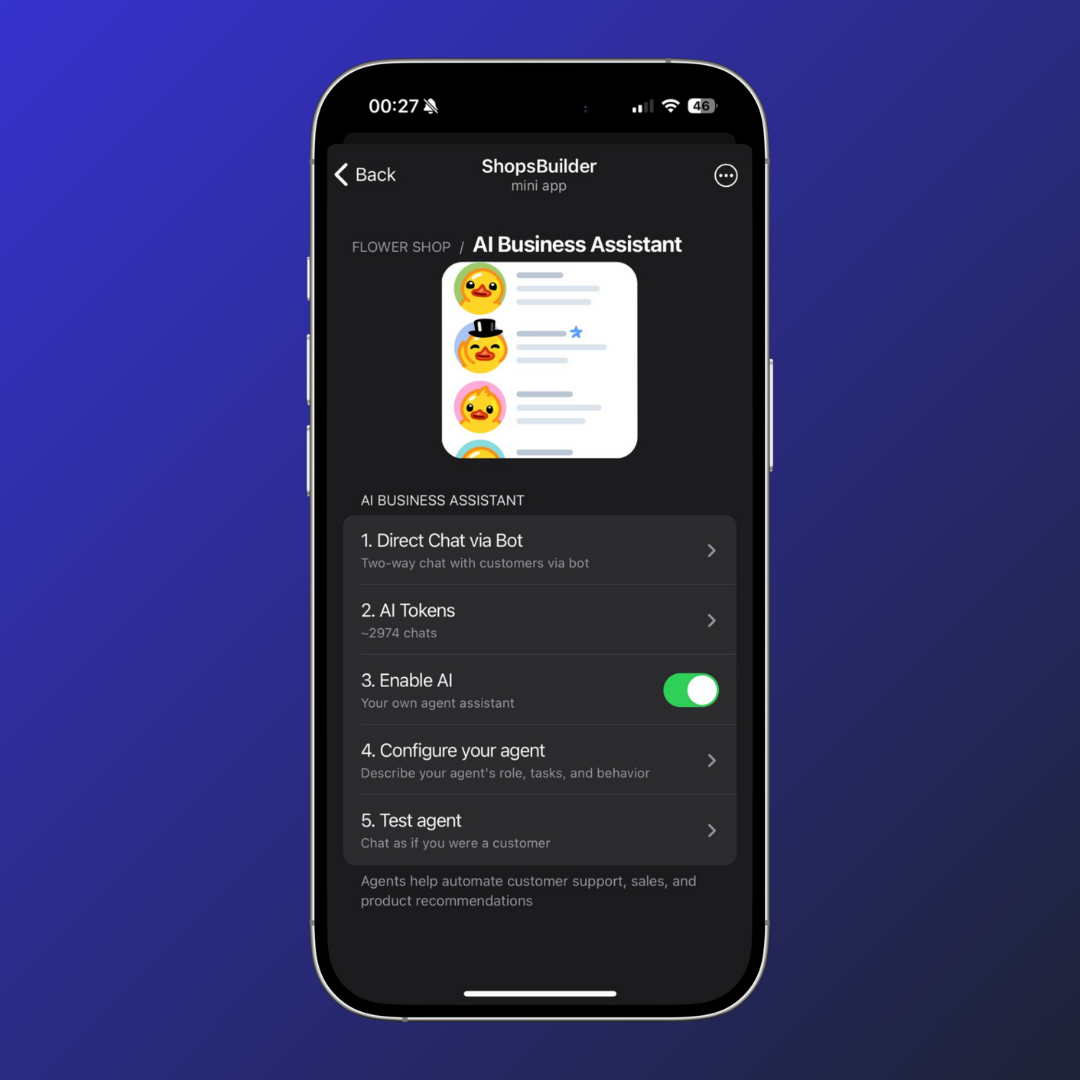
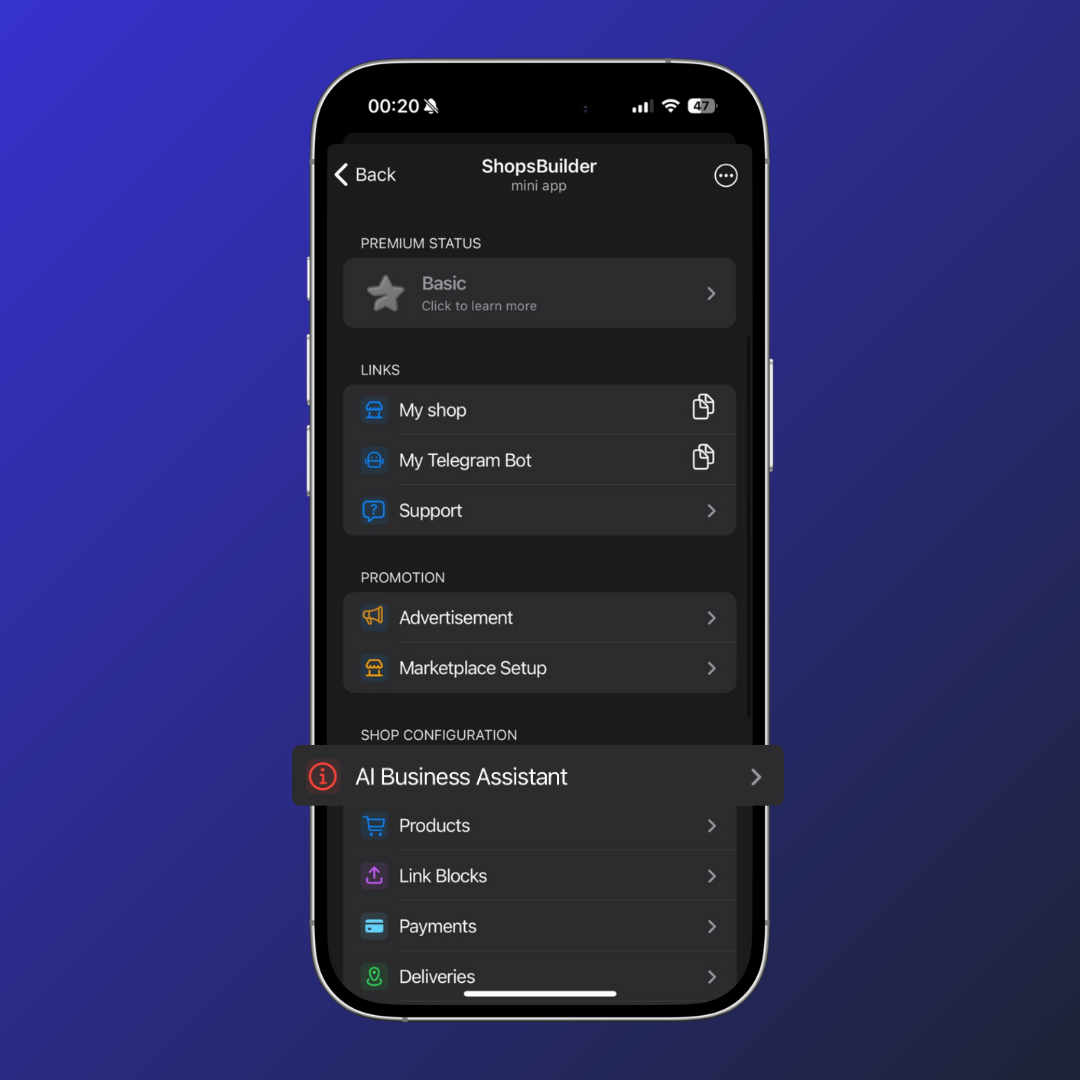
AI Business Assistant
Your bot can include an AI-powered assistant that helps with customer support, sales, and product recommendations.
Setup steps:
- Enable Direct Chat via Bot for two-way customer communication
- Check your AI Tokens balance
- Enable the AI Agent toggle
- Configure your agent’s role, tasks, and behavior
- Test the agent by chatting as a customer
The AI assistant can handle:
- Product questions and recommendations
- Order status inquiries
- Basic customer support
- Sales assistance
Order Channel Integration
You can link a Telegram channel where notifications about new orders are automatically published.
To set up:
- Prepare a Telegram channel for order notifications
- Get the channel ID
- Send the channel ID and bot name to @ShopDevTeam
- Our team will configure the integration
This is great for:
- Monitoring orders in real-time
- Team collaboration on order processing
- Keeping multiple team members informed
Token Management
What is a Token?
A token is a secret key that identifies your bot. Think of it as your bot’s unique password.
Where is the Token Stored?
The token is stored in ShopsBuilder’s secure system. Never share your token publicly.
Can I Change the Token?
If you regenerate your bot’s token in BotFather, you can update it in your shop settings.
What if My Bot is Banned?
If Telegram bans your bot:
- Create a new bot in BotFather
- Get the new token
- Update it in your store settings
Troubleshooting
Bot isn’t responding
- Verify the bot is running — try starting a conversation with it
- Check if the token is correct in store settings
- Make sure the bot has admin rights in the group
Commands not working
Ensure you’re sending commands to the correct bot username. Check for typos in @username.