Mass Mailing
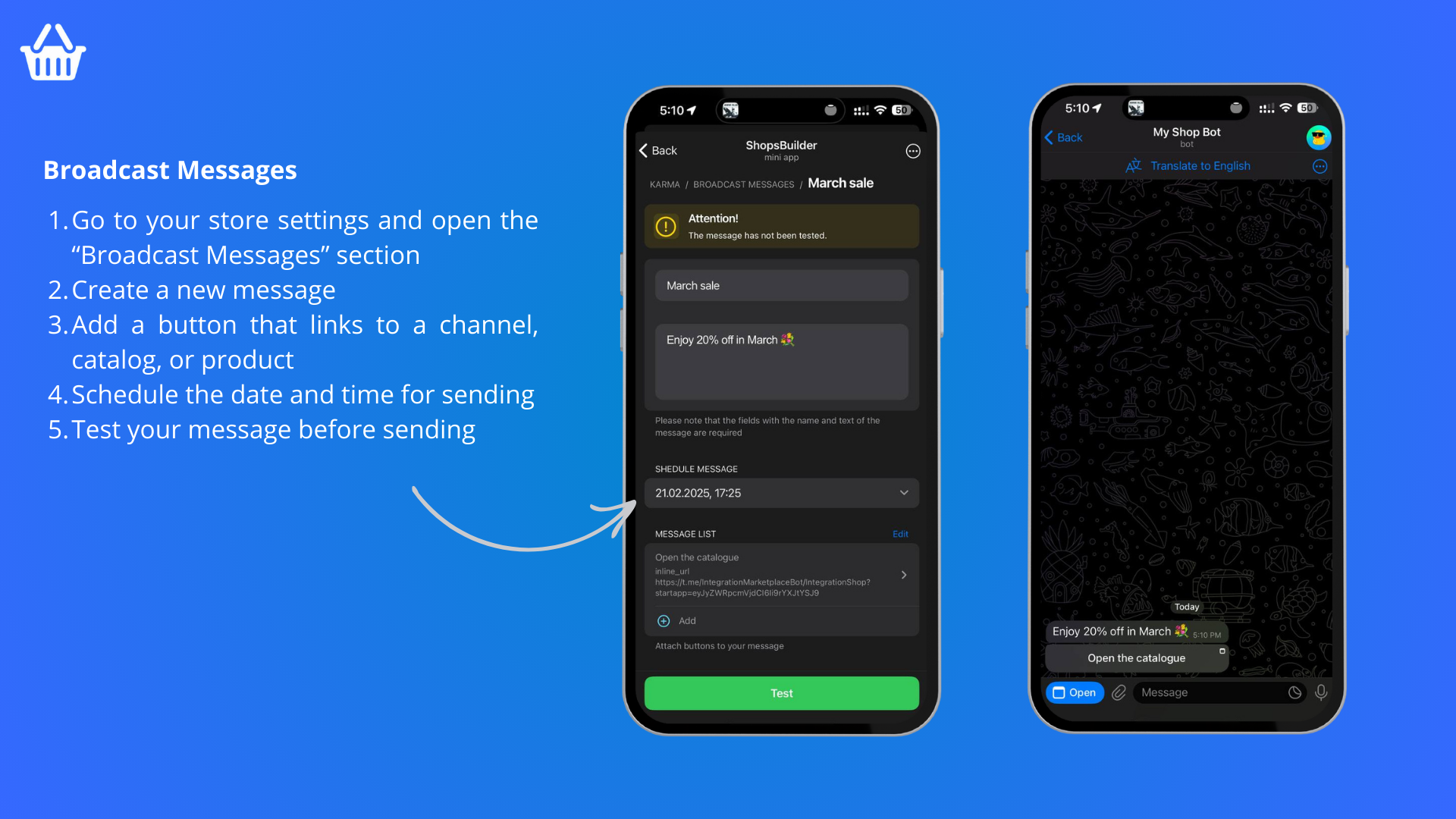
What is It?
Send promotional messages to all your customers through your shop’s bot — perfect for announcing sales, new products, or important updates.
How to Create a Mass Mailing
Step 1: Access Broadcast Messages
- Open your shop settings
- Select Broadcast Messages in the bottom menu
- Choose Create a New Mailing
Step 2: Create Your Message
- Enter the Subject — Clear headline that grabs attention
- Write the Message — Short, compelling text about your offer
Step 3: Schedule or Send
- Send immediately — Message goes out in 15 minutes
- Schedule — Pick a convenient date and time
Step 4: Add a Button
Choose a button type to direct customers:
| Button Type | Purpose | Example |
|---|---|---|
| Inline Button | Link to external resources | Website, channel, promo code |
| App Button | Link to your Mini App | Direct to shop interface |
| Shop Button | Link to your shop | Default option |
Set the button name and link:
- Button name: “Open Catalog”, “Shop Now”, “View Sale”
- Link: Your target URL
Step 5: Test and Finalize
- Test your message — Send to yourself to verify
- Review content — Check for errors
- Send or cancel — After testing, message sends in 15 minutes or at scheduled time
- Cancel option — Remove from list if you change your mind
Limitations
- Frequency: Maximum 5 mailings per month
- Availability: Premium feature only
- Recipients: All users who opened your shop at least once (except those who blocked it)
Best Practices
- Don’t spam — Send relevant, valuable content
- Personalize — Use customer names when possible
- Include clear CTAs — Tell customers what to do next
- Test timing — Send when customers are most active
- Keep it short — Brevity improves engagement
- Add value — Promotions, updates, useful information
Last updated on