Mini App Setup
Create a branded Telegram Mini App for your ShopsBuilder store with a custom link.
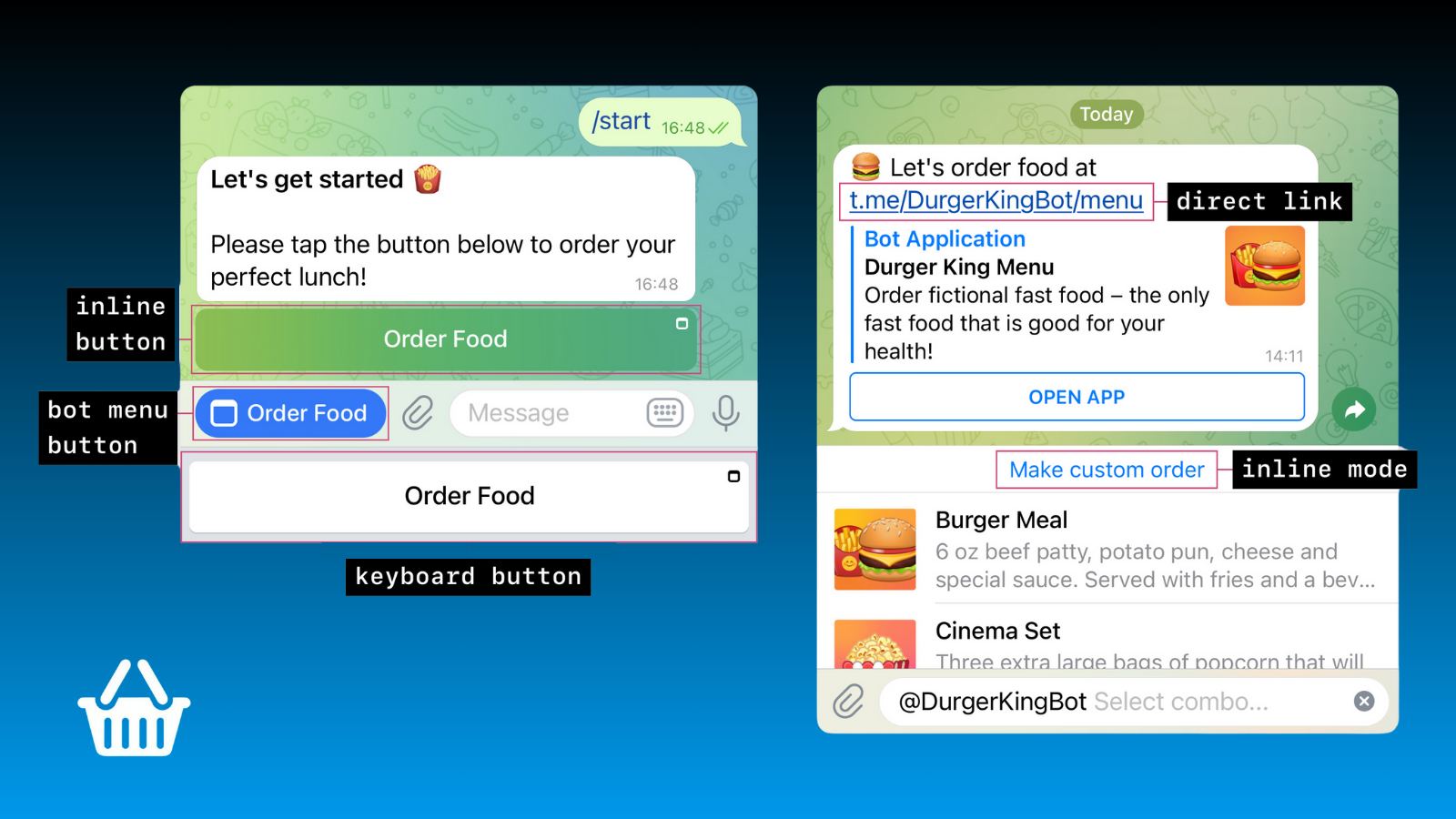
What is a Mini App?
A Telegram Mini App is a web application that runs directly inside Telegram. Every ShopsBuilder store already works as a Mini App, but you can create a branded version with your own bot.
Default vs Custom Mini App
| Type | URL | Branding |
|---|---|---|
| Default | ShopsBuilder link | ShopsBuilder branding |
| Custom | https://t.me/YourBot/shop | Your bot’s branding |
Why Create a Custom Mini App?
Benefits
- Branded Experience — Show your bot name in the link
- Custom Short Link — Memorable URL like
https://t.me/YourBot/shop - Professional Appearance — Build trust with customers
- Flexible Integration — Use as menu button or full-screen app
Use Cases
- Marketing materials with direct links
- Channel menu buttons for easy access
- Professional social media presence
- Better brand recognition
Requirements
⚠️ Important: You must use the same bot that’s already connected to your store. A different bot won’t work.
Setup Steps
Step 1: Get Your Store’s Web URL
Your ShopsBuilder store is already web-ready. You just need the URL.
- Open @BotFather in Telegram
- Send
/mybotscommand - Select your bot
- Go to Bot Settings → Menu Button
- Copy the Website URL — this is your store’s public link
Step 2: Create the Mini App
- In @BotFather, send
/newapp - Select your bot (must be the same one connected to your store)
- Enter:
- App name — Your brand or store name
- Description — Brief explanation of your store
- Image — Logo or brand image
- Set your app path (e.g.,
shop) - Paste your ShopsBuilder store URL from Step 1
Step 3: Test Your Mini App
Your custom Mini App is now ready! Test it:
- Open any Telegram chat
- Type:
@your_bot - Click the mini app button
- Your store opens with your branding
URL Structure
Examples
https://t.me/YourBot/shop
https://t.me/YourBot/catalog
https://t.me/YourBot/products
Choose a path that’s:
- Short — Easy to remember
- Clear — Customers know what to expect
- Branded — Reflects your business
Integration Options
Menu Button
Add your Mini App as a menu button in your bot:
- Go to @BotFather → /mybots → Bot Settings → Menu Button
- Configure the button with your Mini App link
Channel Menu
Make it easy for channel subscribers to access your store:
- Use the Mini App URL in channel descriptions
- Add as a button or link
- Encourage subscribers to bookmark it
Direct Sharing
Share your custom Mini App link:
- In private messages
- In groups and channels
- On social media
- In marketing materials
Improving Access for Russian Users
For Russian customers, consider additional optimizations:
Domain Configuration
⚠️ TODO: Verify current domain configuration options for Russian users. Contact support for the latest information.
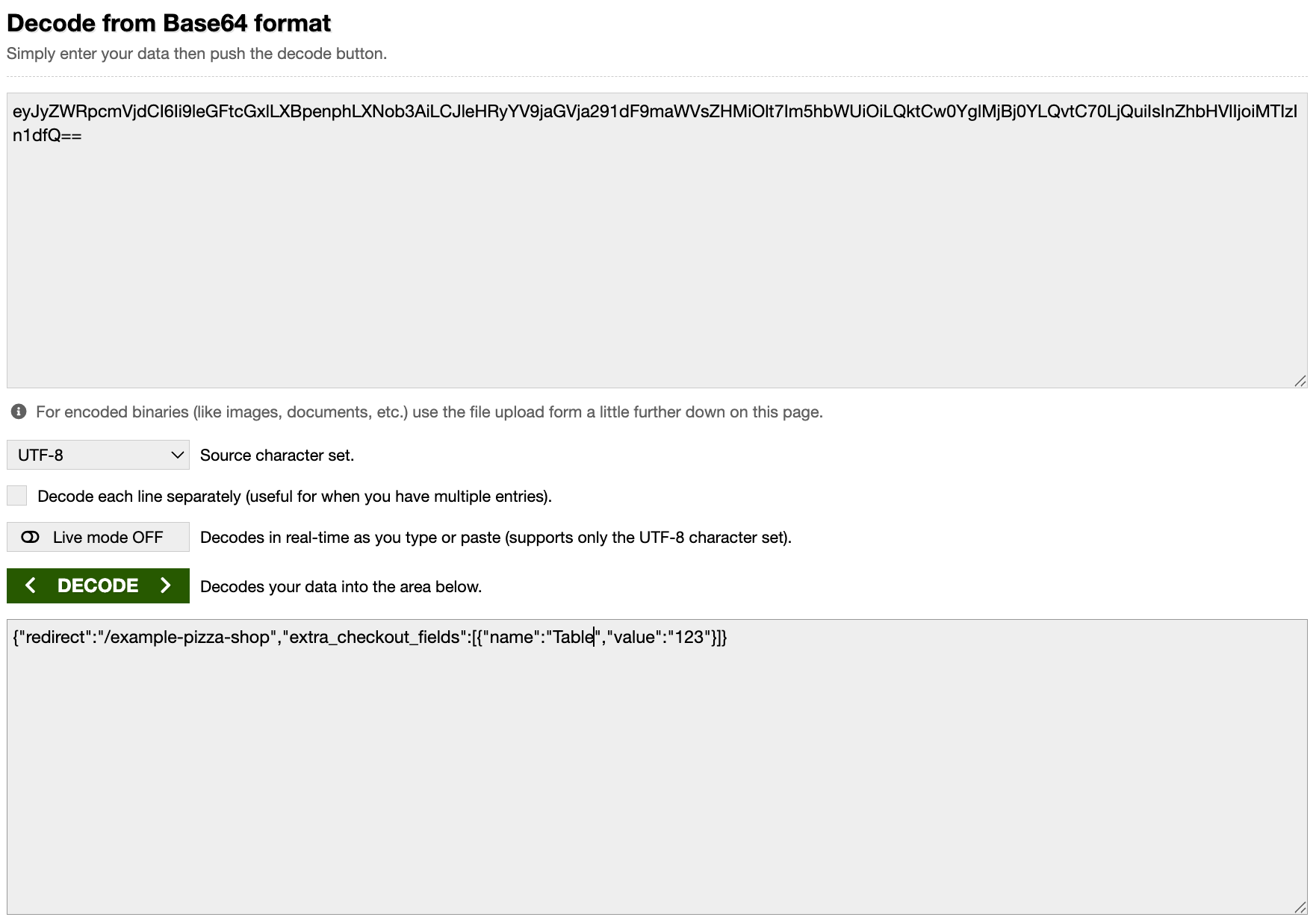
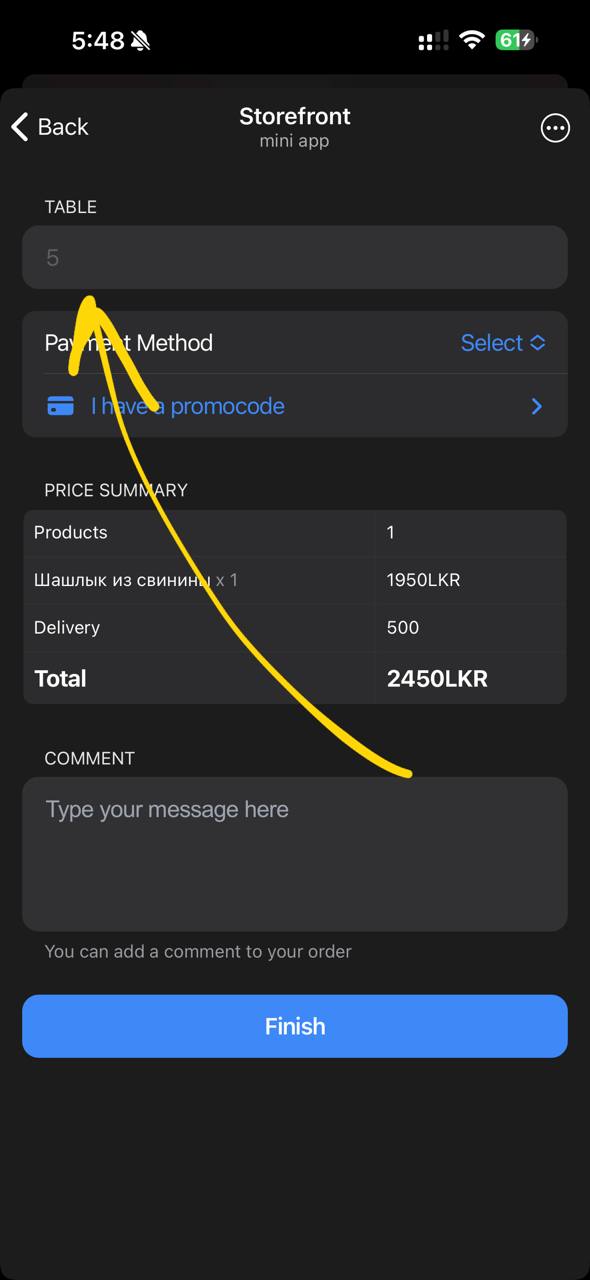
Custom Information on Checkout
Customize checkout information for specific regions:
- Access store settings
- Configure checkout fields
- Add region-specific instructions
- Test with Russian customers
Troubleshooting
Mini App Not Working
- Check bot connection — Ensure the bot is connected to your store
- Verify URL — Make sure the URL is correct
- Test in different Telegram apps — Desktop, mobile, web
- Check bot permissions — Bot must have admin rights
Wrong Store Loads
- Verify bot connection — Ensure correct bot is linked
- Check URL — Make sure you’re using the right Mini App link
- Refresh the app — Clear cache and reload
Custom Branding Not Showing
- Verify Mini App creation — Check it was created in BotFather
- Test URL — Confirm it opens your custom link
- Clear browser cache — Old data may be cached
Best Practices
URL Naming
- Keep it short — Easier to share and remember
- Use English — Works globally
- Avoid special characters — Standard characters only
App Description
- Be clear — Explain what your store offers
- Be concise — Keep it brief
- Use keywords — Help with discoverability
Images
- Use high quality — Professional appearance
- Right dimensions — Follow Telegram guidelines
- On-brand — Match your store’s look
Next Steps
Need Help?
Can’t get your Mini App working? Contact our support team: