Customer Support
The Customer Support feature transforms how you communicate with your customers — every visitor who needs help gets their own dedicated thread.
How It Works
Automatic Thread Creation
When a customer sends a message that requires manual support, a new thread is automatically created in your Orders chat:
- Customer asks about payment methods
- Customer has delivery questions
- Customer reports an issue
- Customer needs order modification
Messages the bot can handle automatically (like /start or /help) won’t create a thread.
Thread Organization
📌 Each customer gets their own thread — all their messages stay together
📌 All orders stay in General section — with links to customer threads
Direct Replies
As an admin, you can reply directly in the customer’s thread. The bot delivers your message to the customer automatically.
Why Use Customer Support?
Never Miss a Potential Buyer
Every visitor who asks a question that the bot can’t answer creates a thread. You’ll see it and can respond immediately.
Better Organization
No more searching through order messages to find customer questions. Each customer has their dedicated conversation history.
Order Separation
Regular order notifications stay in the General section, while customer support threads are clearly separated and linked.
Faster Responses
Reply directly in the thread — no need to copy/paste messages into separate chats.
Common Customer Questions
Based on actual support conversations, customers often ask:
- “What payment methods do you accept?” — See Payments
- “How do I place an order?” — Guide them through checkout
- “Can I modify my order?” — Explain your modification policy
- “My order hasn’t arrived” — Check delivery status and tracking
- “Do you offer international shipping?” — Check your delivery settings
- “I have a delivery question” — Use the thread to clarify
Enabling Customer Support
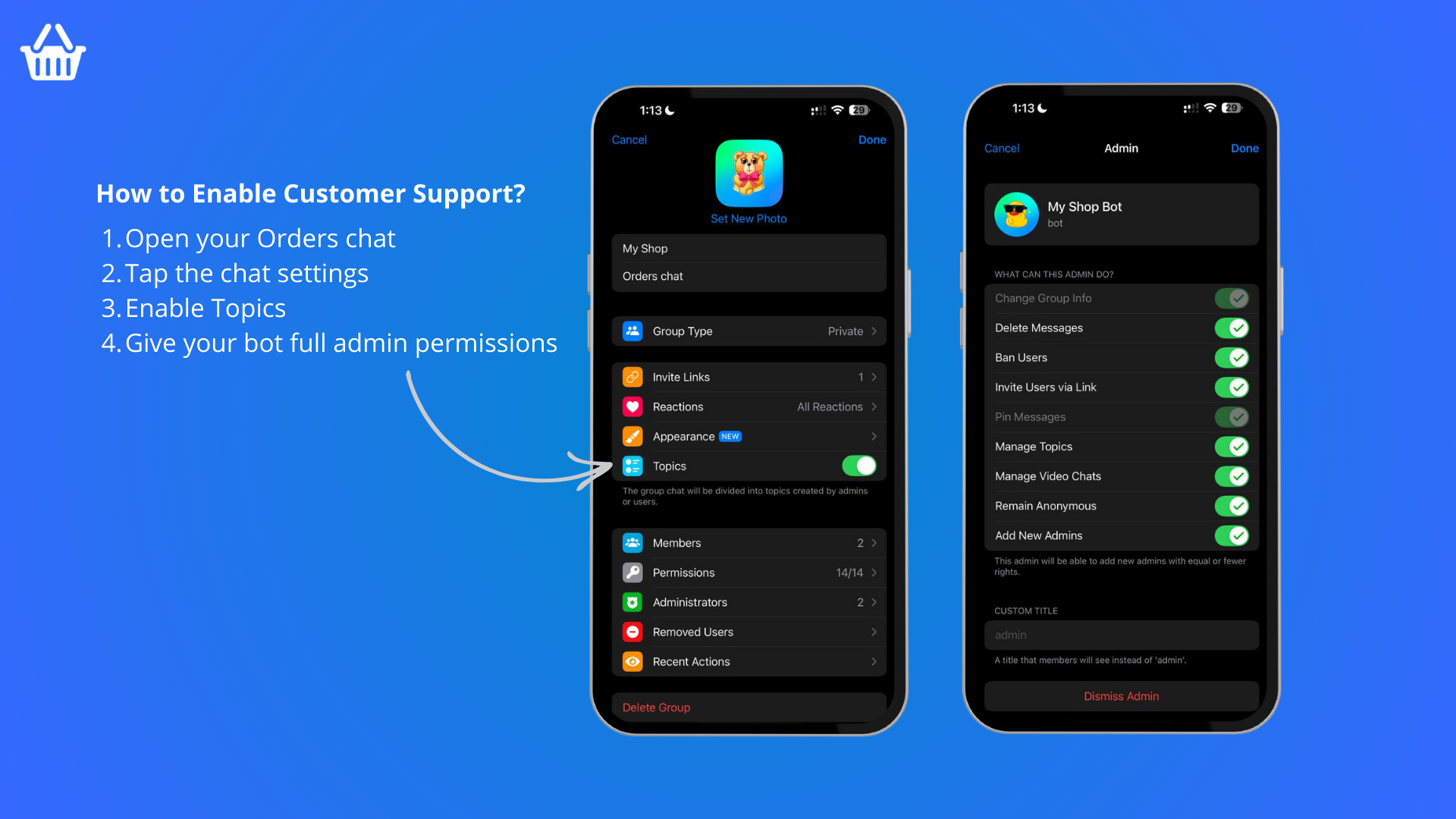
Step 1: Enable Topics in Orders Group
- Open your Orders chat
- Tap chat settings
- Enable Topics
- Give your bot full admin permissions
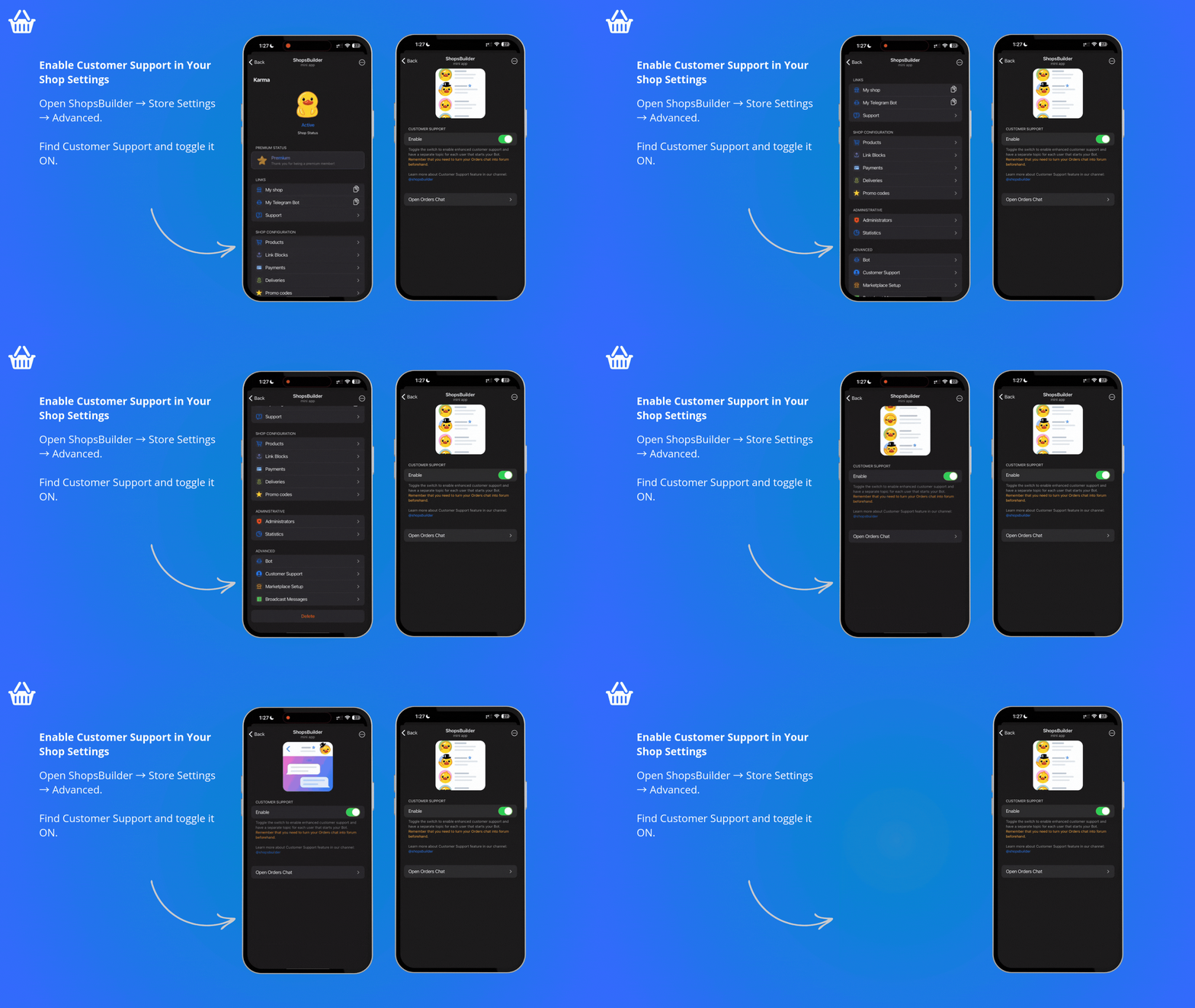
Step 2: Enable in Store Settings
- Go to ShopsBuilder → Store Settings → Advanced
- Find Customer Support
- Toggle it ON
Once enabled, all customer messages requiring manual attention will appear as separate threads.
Using Customer Support
How to Respond
- Click on a customer’s name or thread in the Orders chat
- Read their question
- Type your reply
- Send — the bot delivers it to the customer
Best Practices
- Respond quickly — Customers appreciate fast answers
- Be helpful — Guide them through issues
- Stay professional — Clear, friendly communication
- Follow up — Check if their issue is resolved
Thread vs Orders
- Orders: General notifications for all orders
- Threads: Individual customer conversations requiring help
Free vs Premium
| Feature | Free | Premium |
|---|---|---|
| Customer Support | ✅ Yes | ✅ Yes |
| ShopsBuilder watermark | ✅ Visible | ❌ Removed |
| Custom branding | ❌ Limited | ✅ Full |
Both versions include Customer Support — upgrade to Premium to remove branding and unlock full customization.
Message Types That Create Threads
Creates a Thread (Manual Support Needed)
Messages the bot cannot answer automatically will create a dedicated thread:
- Payment questions (“What payment methods do you accept?”)
- Order modifications (“Can I change my order?”)
- Delivery questions (“When will my order arrive?”)
- Product inquiries (“Is this item in stock?”)
- Shipping concerns (“Do you ship internationally?”)
- Technical issues (“I can’t complete checkout”)
No Thread Created (Bot Handles Automatically)
Commands and queries the bot can handle automatically won’t create threads:
/start— Welcome message/help— Help information/catalog— Product catalog/orders— Order status- Standard product browsing
- Adding items to cart
- Checkout process
How Admins Use Customer Support
Pre-Sale Support
Convert hesitant buyers by:
- Answering product questions
- Explaining payment options
- Clarifying delivery times
- Providing additional product details
- Addressing concerns
Post-Sale Support
Maintain customer satisfaction:
- Help with order modifications
- Clarify delivery status
- Resolve shipping issues
- Handle returns and refunds
- Provide tracking information
Troubleshooting
Assist with technical problems:
- Checkout issues
- Payment failures
- Website navigation
- Order placement problems
- Account issues
Thread Organization Tips
Keep Your Orders Chat Organized
📌 Pin the General section — Don’t let order messages get buried
📌 Use clear thread titles — The system creates these automatically
📌 Archive resolved threads — Clean up old conversations
📌 Check threads regularly — Respond quickly to customer questions
Managing High Volume
If you receive many customer messages:
- Prioritize — Handle urgent issues first
- Delegate — Give admin rights to trusted team members
- Set response times — Communicate when customers can expect replies
- Use templates — Prepare responses for common questions
Customer Communication Best Practices
Response Times
- Quick responses — Aim to reply within hours, not days
- Set expectations — If busy, let customers know when you’ll reply
- Automated replies — Use welcome messages to set expectations
Tone and Style
- Be friendly and helpful — Build positive relationships
- Stay professional — Even with difficult customers
- Be clear — Avoid jargon and ambiguity
- Be concise — Long messages can be overwhelming
Follow-Up
- Confirm resolution — Check if the issue is solved
- Ask for feedback — Learn how to improve
- Thank customers — Appreciate their patience and loyalty
Troubleshooting
Customer Can’t Find My Response
- Verify you sent the message in the thread
- Check that the bot is running
- Make sure Customer Support is enabled
Thread Not Created
Not all messages create a thread. Bot-handled commands (/start, /help, /catalog) don’t need manual support.
Orders Not Showing
Check that:
- Customer Support is enabled
- Bot has admin rights
- You’re looking in the correct Orders chat
Need Help?
Contact our support team: