Promo Codes
Create promotional codes to offer discounts and drive sales.
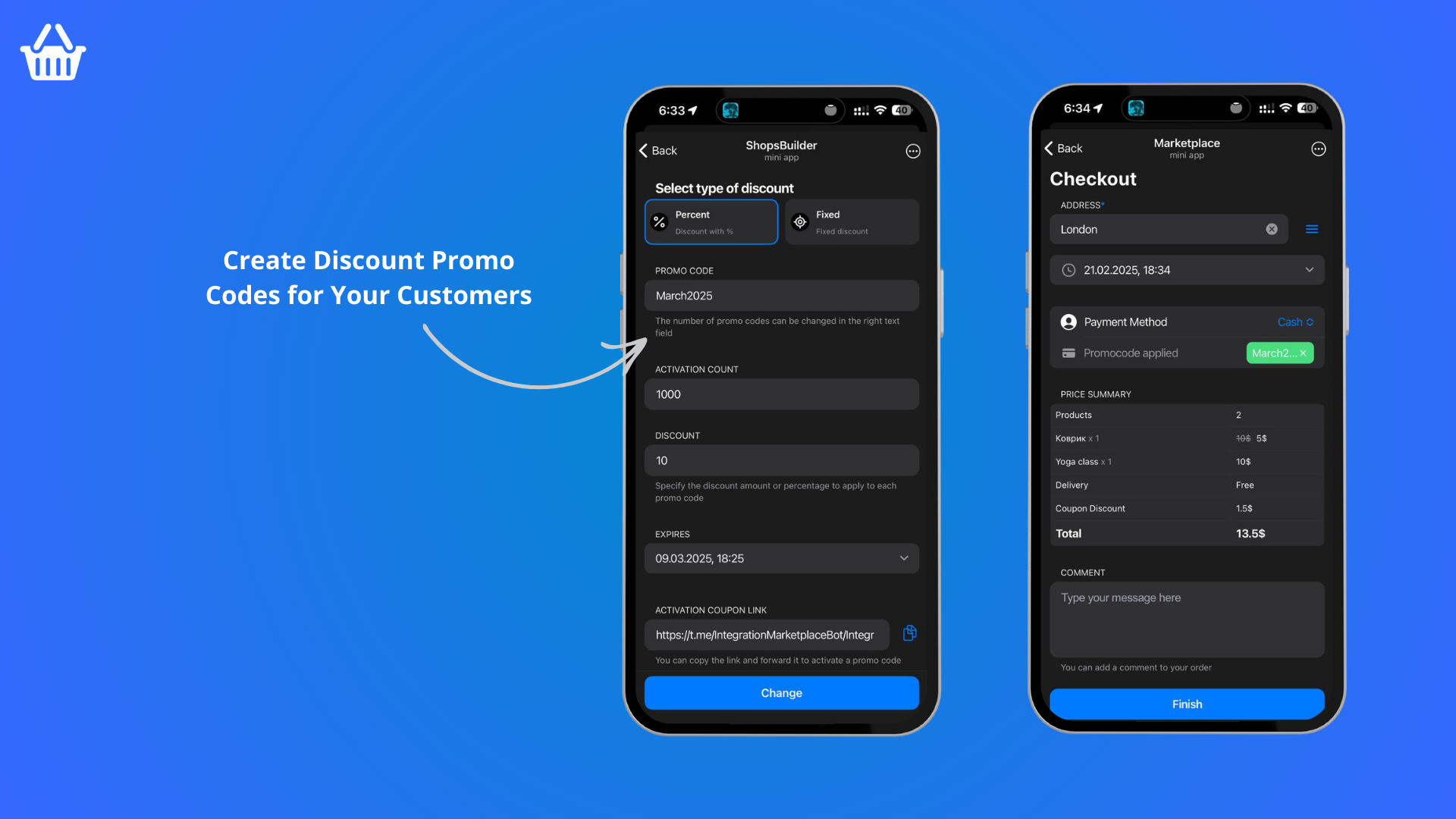
What are Promo Codes?
Promo codes (also called discount codes) let you offer:
- Percentage discounts — “10% off” or “20% off”
- Fixed amount discounts — “$5 off” or “500₽ off”
- Special offers — Free shipping or buy-one-get-one
Creating Promo Codes
How to Add
- Open @ShopsBuilderBot
- Go to Store Settings → Promo Codes
- Click Add Promo Code
- Configure your code:
- Code — The code customers will enter (e.g.,
SUMMER2025) - Discount type — Percentage or fixed amount
- Discount value — How much to deduct
- Usage limit — Max number of uses
- Expiration date — When the code stops working
- Code — The code customers will enter (e.g.,
Code Tips
- Memorable but not obvious — Don’t use
DISCOUNT - Uppercase for clarity —
SALE2025notsale2025 - No special characters — Avoid spaces, emojis in codes
- Limit characters — 8-12 is typical
Discount Types
Percentage Discount
A percentage off the total order:
Code: WELCOME10
Discount: 10% off
Order: 1000₽ → Customer pays: 900₽
Best for: Store-wide sales, seasonal promotions
Fixed Amount Discount
A specific amount off the total order:
Code: SAVE500
Discount: 500₽ off
Order: 2000₽ → Customer pays: 1500₽
Best for: High-value products, special offers
Usage Limits
Single Use
Code works once per customer:
- Prevents abuse
- Creates urgency
- Encourages first-time purchase
Multiple Use
Code works a specified number of times:
- Return customers can reuse
- Good for loyalty rewards
- Set reasonable limits (e.g., 100 uses)
First Order Only
Restrict to new customers only:
- Acquires new buyers
- Rewards sign-ups
- Prevents discount stacking
Expiration
Setting Expiration
Choose when codes expire:
- Specific date —
2025-12-31or2026-01-15 - Duration — “7 days after first use” or “30 days from creation”
Expired Codes
Customers see:
- “This promo code has expired”
- Cannot complete purchase with the code
- Encourage trying other codes or contacting support
Promoting Promo Codes
Where to Share
- Telegram channel — Announce to followers
- Customer Support — Mention in threads
- Order confirmation — Include in messages
- Social media — Share on other platforms
How to Share with Customers
You have two options for distributing promo codes:
Option 1: Promo Code Link
Generate and share a direct link:
- In the Promo Codes section, create a promo code
- Generate and copy the promo code link
- Share the link with customers
- When customers follow the link, the promo code is automatically applied to their cart
Benefits:
- No typing required from customers
- Reduces errors
- Higher conversion rate
Option 2: Promo Code Name
Share just the code name:
- Tell customers the promo code name
- They manually enter it in their cart
- The discount is applied
Best practices:
- Keep codes short and memorable
- Use clear naming conventions
- Communicate terms clearly
Promotion Ideas
- 🎉 Launch sale — “WEEKEND SALE — use code: WEEKEND25”
- 🎁 New product — “First 10 buyers get 20% off: NEW20”
- 📅 Seasonal — “Spring Collection — SPRING15”
- 🎂 Inventory — “Clearance items — CLEARANCE50”
- 💝 Loyalty — “Returning customers get 15% off: THANKYOU15”
Important Notes
What Promo Codes Apply To
⚠️ Promo codes do NOT apply to shipping costs. Discounts only apply to the product total, not delivery fees.
Code Naming
- Keep it short — Easy to remember and type
- Make it memorable — Related to the promotion
- Avoid spaces — Use underscores or capitalization
- Example formats:
WELCOME10— New customer discountSUMMER2025— Seasonal saleFLASH50— Limited time offer
Tracking Performance
Metrics to Monitor
- Usage count — How many times each code was used
- Revenue impact — Total discount value given
- Conversion rate — Orders with codes vs total orders
- Popular codes — Which offers work best
A/B Testing
Test different codes:
- Run multiple promotions simultaneously
- Compare performance
- Optimize future campaigns
Best Practices
Clear Terms
- Specify what applies — “All products” or “Category X only”
- Set minimum order — Prevent tiny discounts
- Explain combinations — “Cannot combine with other offers”
Communication
- End date in code name —
NEWYEAR2025shows it expires in 2025 - Announce in advance — Give customers time to plan purchases
- Notify of expiration — Send reminder before codes expire
Troubleshooting
”Invalid Promo Code”
- Check for typos — Capitalization matters
- Verify expiration date — Code may have expired
- Check minimum order — Some codes require a minimum purchase
- Confirm code is active — Enabled in store settings
”Code Already Used”
- Single-use codes work once per customer
- Customer may have already used it
- Suggest trying a different code
”Code Not Applied”
- Check if products in cart are eligible
- Verify terms and conditions are met
- Try removing and re-adding the code
- Contact support if issues persist
Next Steps
- Store Settings — Create your first promo code
- Marketing Overview — Learn about promotional tools
- FAQ — Common questions
Last updated on